 mobiCut
Docs › Cut and time
The editor: playback and the timeline
Play and pause
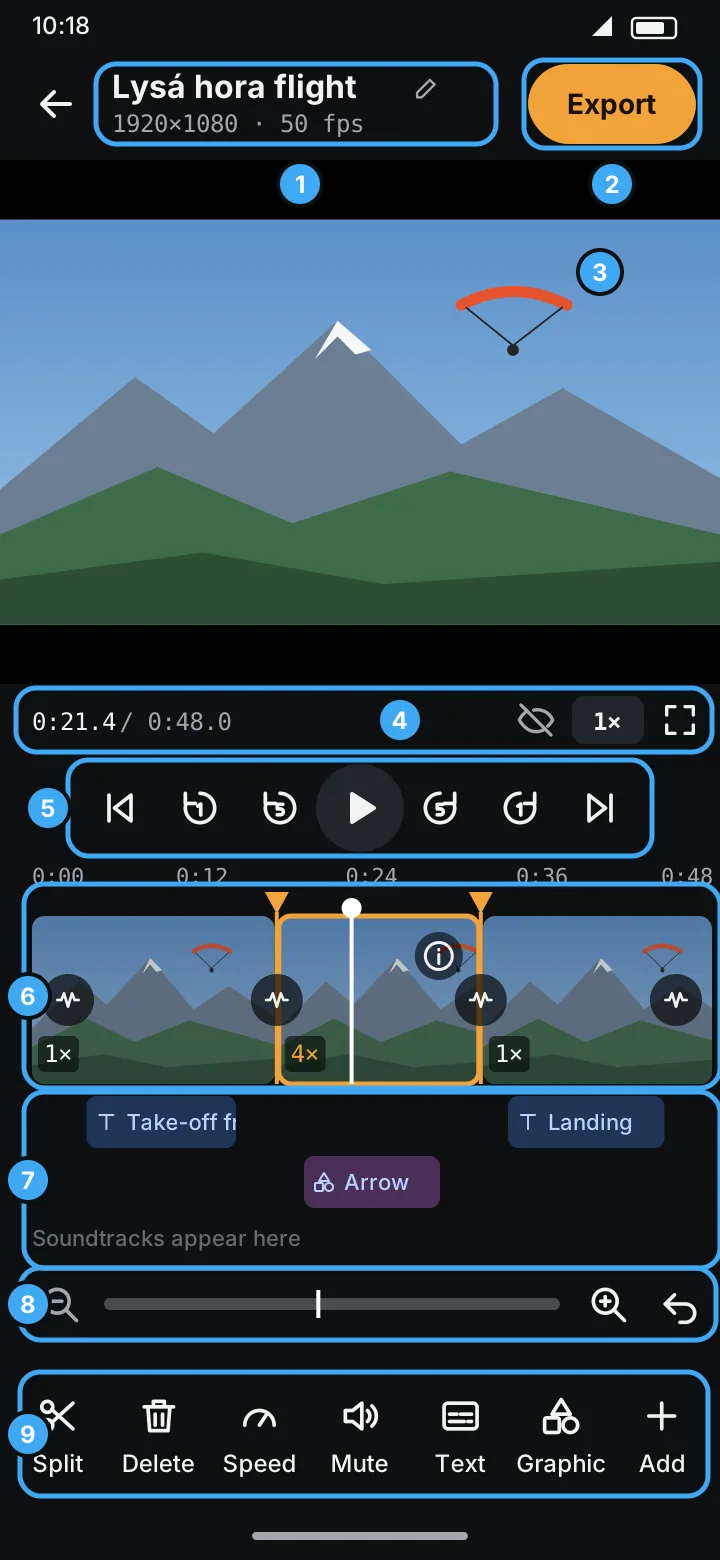
Tap ▶ under the preview. Playback already follows your edits: deleted segments are skipped, sped-up segments play fast, texts and graphics appear on the video with their animation, fades dim the picture and interleaves crossfade.
The player bar right under the preview shows the position in the finished video and its
total length, for example 0:21.4 / 0:48.0. They change as you delete and speed up segments. On
its right are the eye that shows deleted segments,
the preview speed and full screen.
Preview speed
The button with 1× in the player bar plays the preview faster or slower: 0.5×, 1×, 2×,
4× or 8×, handy for running through a long flight. Soundtracks follow along. It only
changes how you watch, not the exported video, and it's back to 1× the next time you open the
app. The button is orange while it isn't 1×.
Jump
The buttons around ▶ jump the playhead, also while playing:
| Button | Jumps |
|---|---|
| ⏮ | To the beginning of the finished video (its first kept frame) |
| ↺ 1 | 1 second back |
| ↺ 5 | 5 seconds back |
| ↻ 5 | 5 seconds forward |
| ↻ 1 | 1 second forward |
| ⏭ | To the end (playback stops there) |
The seconds are seconds of the finished video: deleted parts are skipped, and over a 4× segment a jump moves 20 seconds through the original.
Move around the video
- Tap anywhere on the timeline to jump there.
- Drag along the timeline to scrub.
The white line with a dot is the playhead: the current position. The segment under it is selected (orange outline); the tools act on the selected segment.
Read the timeline
| You see | It means |
|---|---|
| Picture strip | Frames from the video, so you can find places by sight |
1×, 4×, 0.5× in the corner |
The segment's speed (orange when it isn't 1×) |
1× · muted |
The segment's sound is muted |
Picture, Zoom in, Zoom out, Slide in |
A picture segment and its effect |
Text |
A text slide |
| White line across the strip | Where one video or picture ends and the next begins (several videos) |
| Orange line with a ▼ at the top | A split between two segments |
| Short red line | Deleted footage is hidden here |
| Round button on a split | Transition (see Transitions) |
| ⓘ on the selected segment | Segment details |
| Times above the strip | Times in the finished video, the same as in the player bar |
| Blue chips under the strip | Texts, with a T (Texts appear here while there are none) |
| Purple chips under the texts | Graphics, with the shape's name |
| Green chips at the bottom | Soundtracks |
Zoom in
On a long video a split needs precision. Use any of:
- 🔍+ / 🔍− under the timeline (each tap doubles or halves the zoom),
- pinch the timeline with two fingers.
The bar between 🔍− and 🔍+ is the whole video: the lighter part is what the timeline shows now, the white line is the playhead. Tap or drag on the bar to move the playhead there; the timeline follows. Handy on a long video zoomed in.
Zoom the preview
Pinch the video with two fingers to look closer (up to 6×), and move it with the same two fingers. It works everywhere the preview shows: playing, editing a text or graphic, drawing and capturing a path. A chip on the preview shows how far in you are (e.g. 2.5×); tap it to see the whole frame again. Zooming only changes your view, not the exported video.
Full screen
Tap the full-screen button in the corner of the preview to watch the edit big. A landscape video turns the screen sideways. The controls at the bottom (play/pause, time, seek bar and preview speed) hide while it plays; touch the screen to bring them back. The large button at the top takes you back.
Undo
↶ (right of the zoom bar, under the timeline) takes back the last change: a split, a delete, a speed change, a text, a graphic, a transition, a mute, a picture, a soundtrack or an added video. Tap it repeatedly to go further back.
Turn the screen
On a phone the editor stays upright (portrait), even when you turn the phone sideways. On a tablet you can hold it either way; sideways, the preview gets much bigger. See Tablets and landscape.