 mobiCut
Docs › Cut and time
Tour of the editor
What each part of the editor screen does, with links to the pages that cover it in detail. New here? Start with Projects.
The editor at a glance
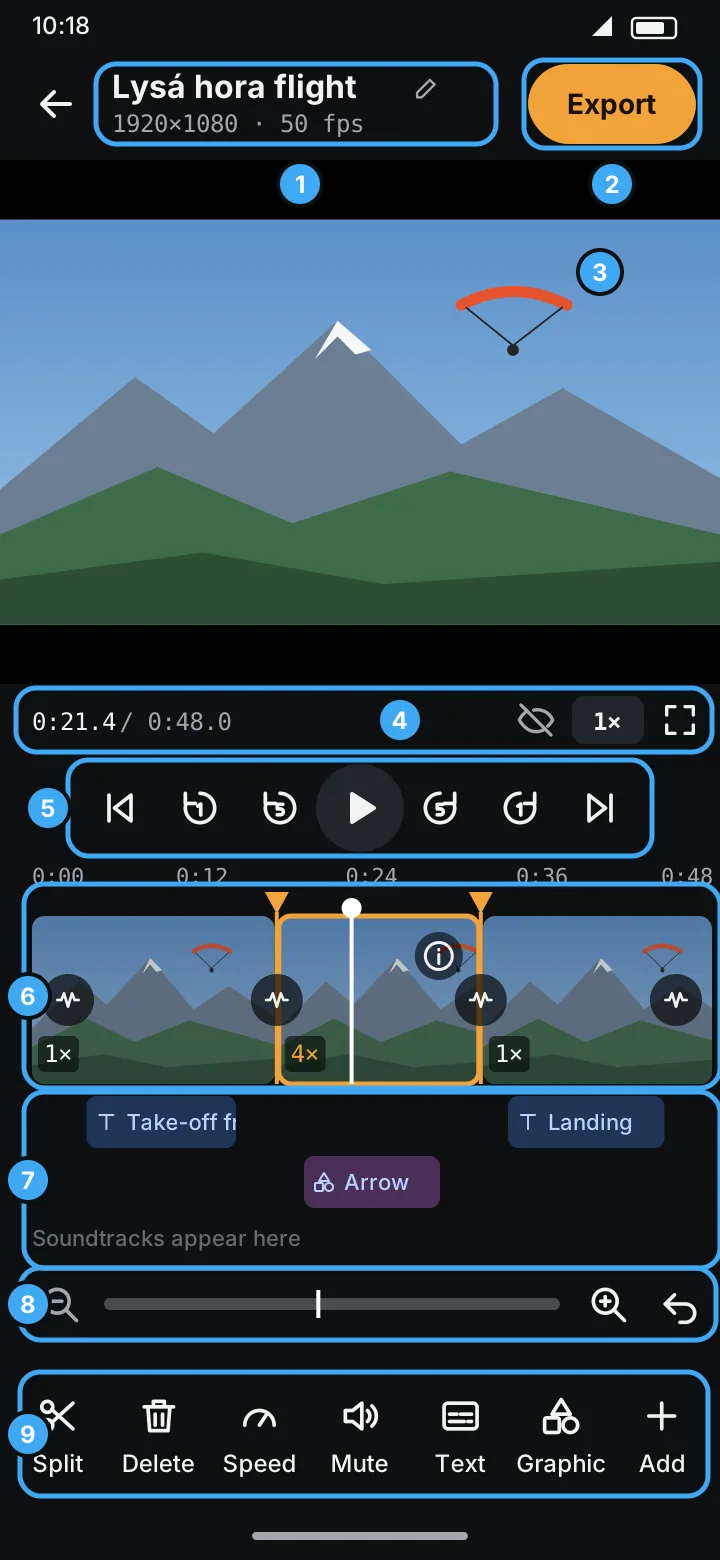
- Project name and video details. Tap to rename.
- Export: build the finished video. See Export.
- Preview. Shows the video as it will look: deleted parts are skipped, speed, transitions texts and graphics are applied. Tap a text or graphic on the video to place, turn and style it.
- Player bar: the position and the length of the finished video (
0:21.4 / 0:48.0), the eye to show deleted segments, the preview speed (1×) and full screen. - Play / pause, with to the beginning, back 1 s, back 5 s, forward 5 s, forward 1 s and to the end around it.
- Timeline. Each block is a segment; orange markers are splits; the white line is the playhead. See The editor.
- Lanes. Blue chips are texts, purple ones graphics: tap one to edit it, drag it to move it in time. Below them, soundtracks.
- Zoom out, the whole video, zoom in, Undo. The bar is the whole video: the light part is what the timeline shows, the white line is the playhead; tap or drag it to go there.
- Tools: Split, Delete / Restore, Speed, Mute, Text, Graphic and Add.
Add: slides, pictures, soundtracks, transitions, more videos
Add (the last tool) puts more into the project:
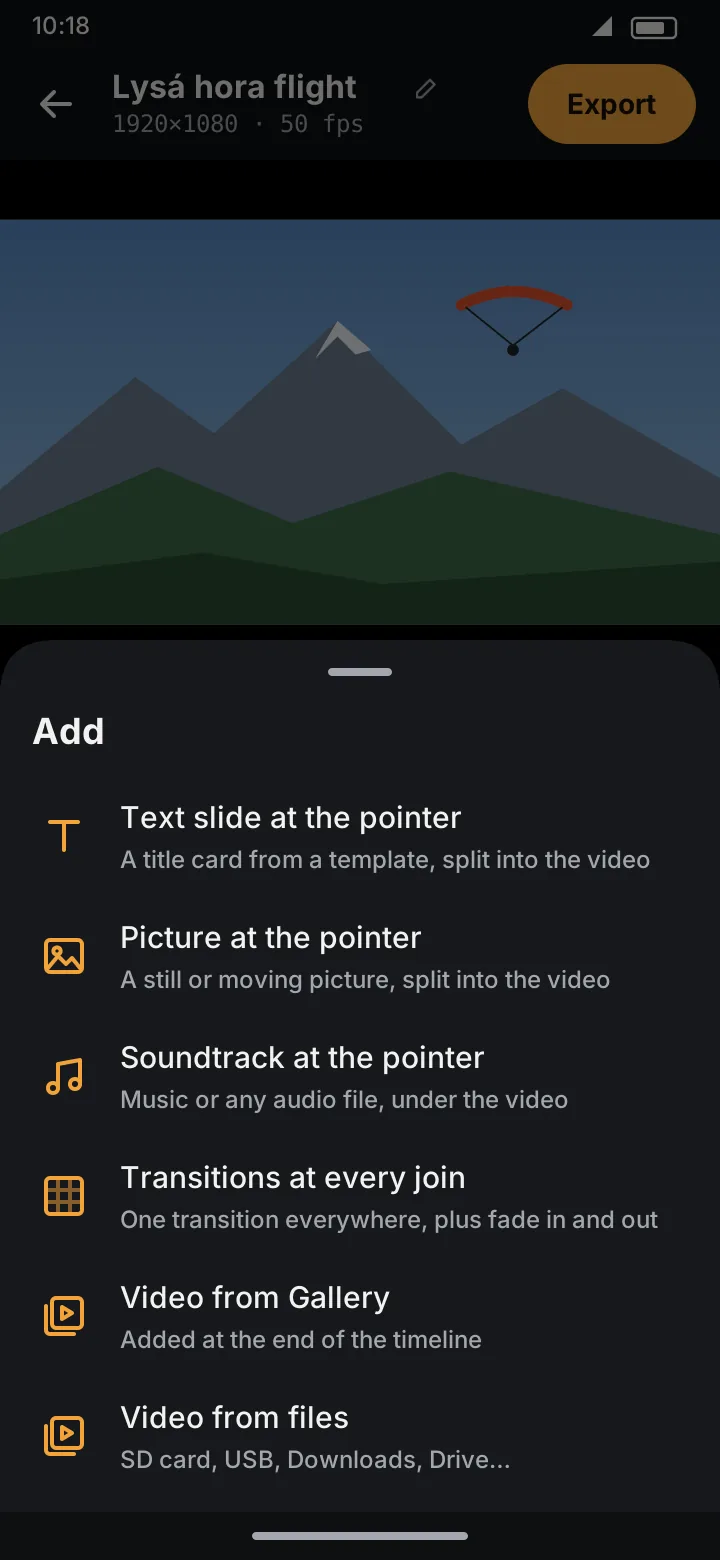
- Text slide at the pointer: a title card from a template, split into the video.
- Picture at the pointer: a still or moving picture, split into the video.
- Soundtrack at the pointer: music under the video, in its own lane.
- Transitions at every join: one transition everywhere, plus fade in and out.
- Video from Gallery / from files: another video at the end of the timeline.