 mobiCut
Docs › Finish and share
Export the finished video
Export builds a new video from your edits. The original is not touched.
Exports are very fast. The video is rendered on the phone with its built-in video hardware. Nothing is uploaded, and deleted parts are skipped.
Export
- Tap Export at the top of the editor.
- Check the length and number of segments at the top of the sheet, then choose: - Resolution: Original (with its size, e.g. Original · 2160p), or a smaller one (1080p, 720p) for a smaller file. Only sizes smaller than the original are offered. - Frame rate: Original, or 30 fps (offered for 50/60 fps videos). 30 fps makes the file smaller and is plenty for sharing. - Text (if the project has texts): Burn into video or Off. Graphics are always burned in.
- Tap Export to gallery.
If some joins have no transition yet, mobiCut first asks whether to add them; see Transitions.
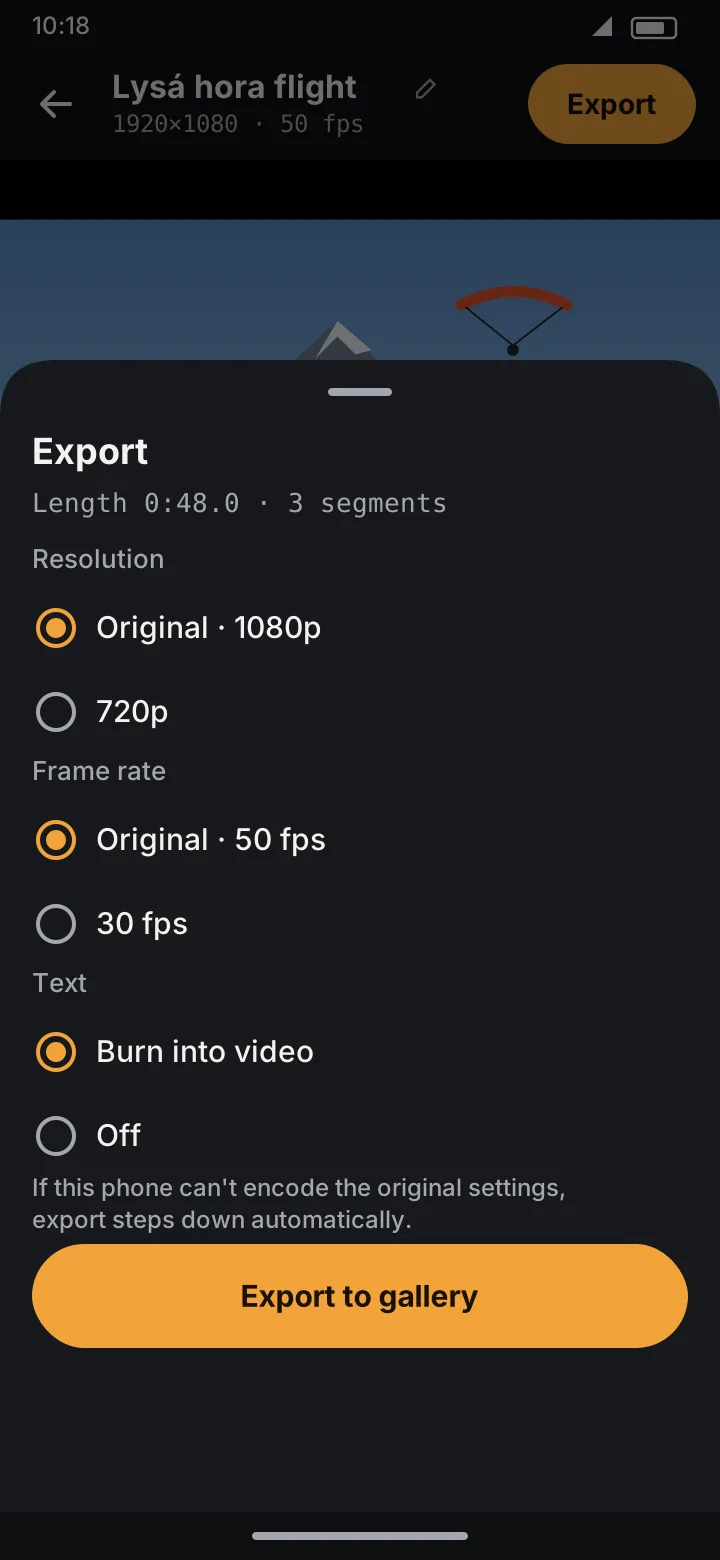
4K and 60 fps in Free
Free exports up to 1080p at 30 fps. For a video filmed in 4K or at 50/60 fps, the options above that carry the PRO badge (tapping one explains Pro), and the sheet starts on 1080p and 30 fps. Videos filmed at 1080p/30 fps or less export at their original settings in Free too. See Free and Pro.
While it exports
A progress bar shows how far it is. Keep mobiCut open until it finishes; the screen stays on by itself. Cancel stops it.
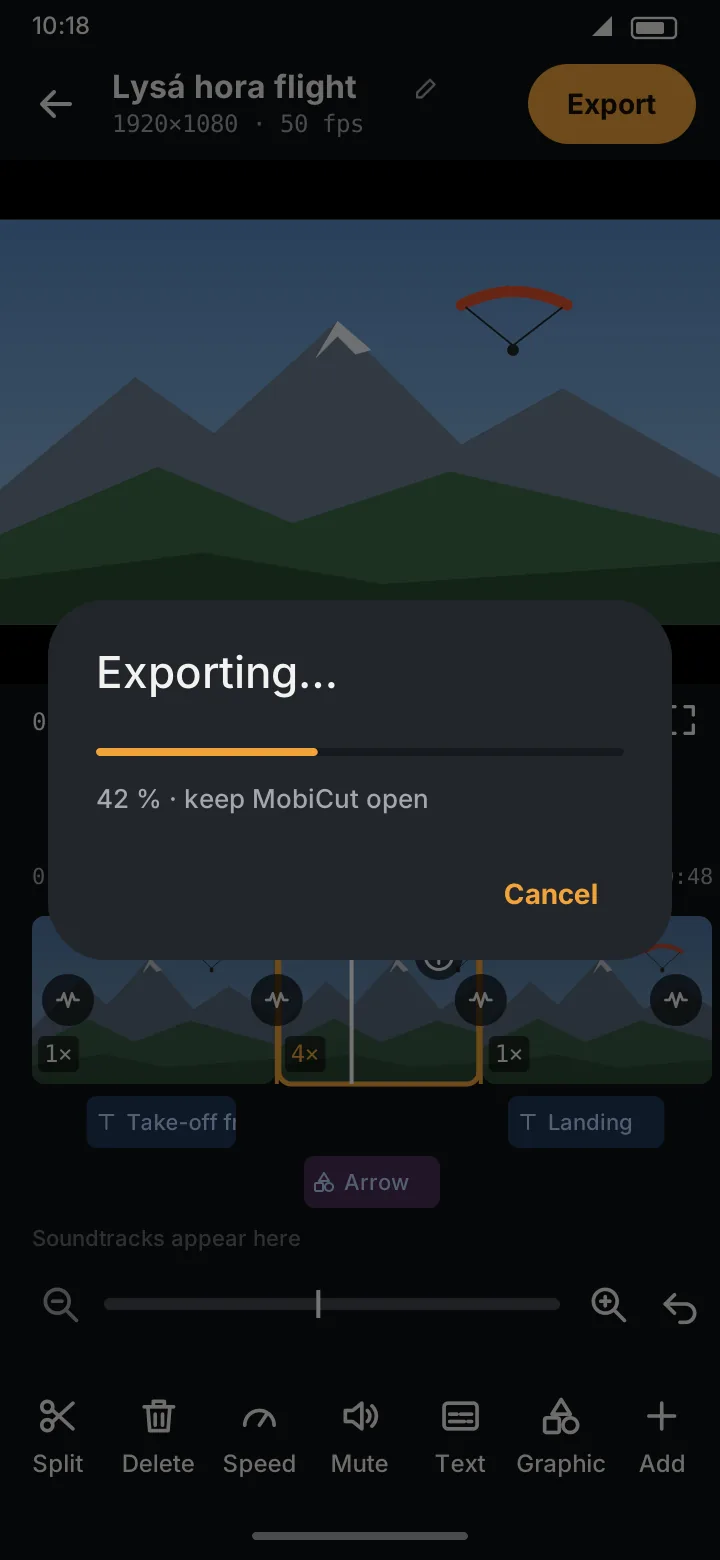
If the phone can't encode the original settings (very high resolution or frame rate), the export steps down automatically and tells you what it changed.
When it's done
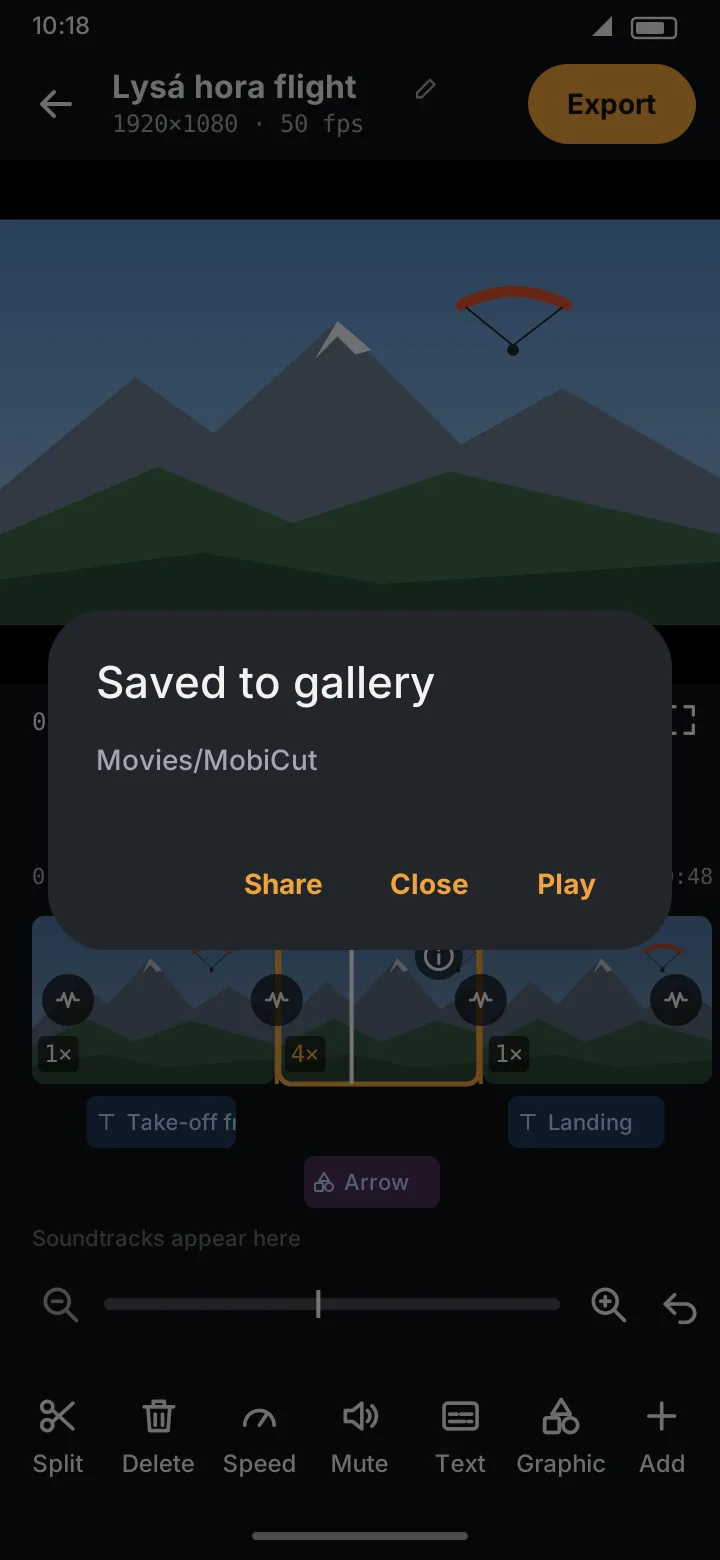
The video is saved to Movies/MobiCut and appears in the gallery. From the dialog you can:
- Play it,
- Share it straight to a messaging app,
- Close.
In Free, after your first export, closing this dialog offers the free week of Pro once (Like your video? Try Pro free for 7 days). Not now closes it, and it doesn't come back.
The mobiCut logo
The Free edition adds a small mobiCut logo (the app icon and the name) in the top right corner of the exported video (you see it in the preview too, so there are no surprises). Pro exports without it. In Free, the export sheet shows Remove watermark with a PRO badge.
The PRO logo, for promo videos
With Pro you can put the logo back on purpose, with an orange PRO tag after it, for example in a video that shows off what you made with mobiCut:
- On the start screen, tap ⚙ Settings.
- Turn on Pro logo (marker 1).
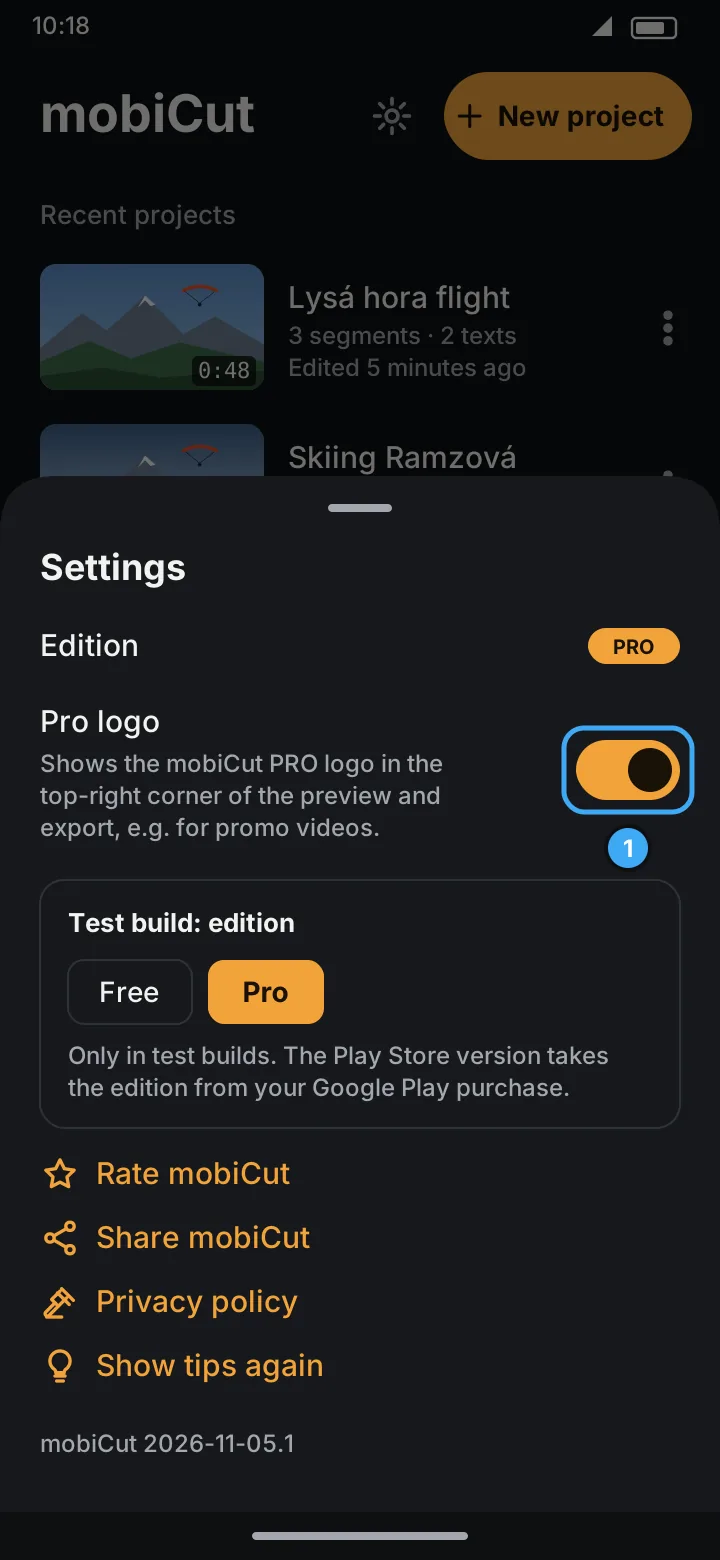
The logo then shows in the preview and in every export until you turn it off again. It's off by default, and the switch is there only in Pro.
No ads appear before, during or after the export, in either edition. See Free and Pro.