 mobiCut
Docs › On the video
Follow a path
Make a text or a graphic follow something moving: a name that stays next to a glider, an arrow that points at a skier all the way down. There are two ways: circle the object and the AI path follows it (Free), or draw the path by hand with your finger while the video plays (Pro). Either way, the overlay follows it in the preview and in the export.
Two ways
Open a text or a graphic and go to its Motion tab. Under Follow something moving there are two buttons, the one you used last first:
- AI path: circle the object, and mobiCut follows it through the video for you.
- Draw by hand PRO: you follow it with your finger.
AI path
- Tap AI path. The video fills the screen, paused where the overlay starts.
- Circle the object to follow, closely around it, with one finger.
- mobiCut shows Following the object… and plays the video along as it goes; this takes a few seconds. Stop ends it early and keeps what it has so far.
- Watch the result with ▶, then tap Accept to keep it, or Take again to circle once more. Cancel leaves the overlay as it was.
- The text or graphic keeps its distance from the object as it moves, so put it where you want it (next to the glider, above the skier) before you start.
- Too broad or Too small: circle again, closer around just the object.
- If the object disappears for too long (behind a tree, out of the frame), mobiCut says where it lost it; Accept keeps the path up to there.
- The AI path follows things in a video; it isn't offered when the overlay starts on a picture or a text slide.
- It follows the object up to the first cut in the finished video: where another video starts, or where you deleted more than 2 seconds. After the cut the overlay stays where the path ended (shorten or move it there if the new scene needs it). Shorter deleted bits are followed through.
- It runs on the phone. Nothing is uploaded.
Draw a path by hand
Tap Draw by hand (Pro).
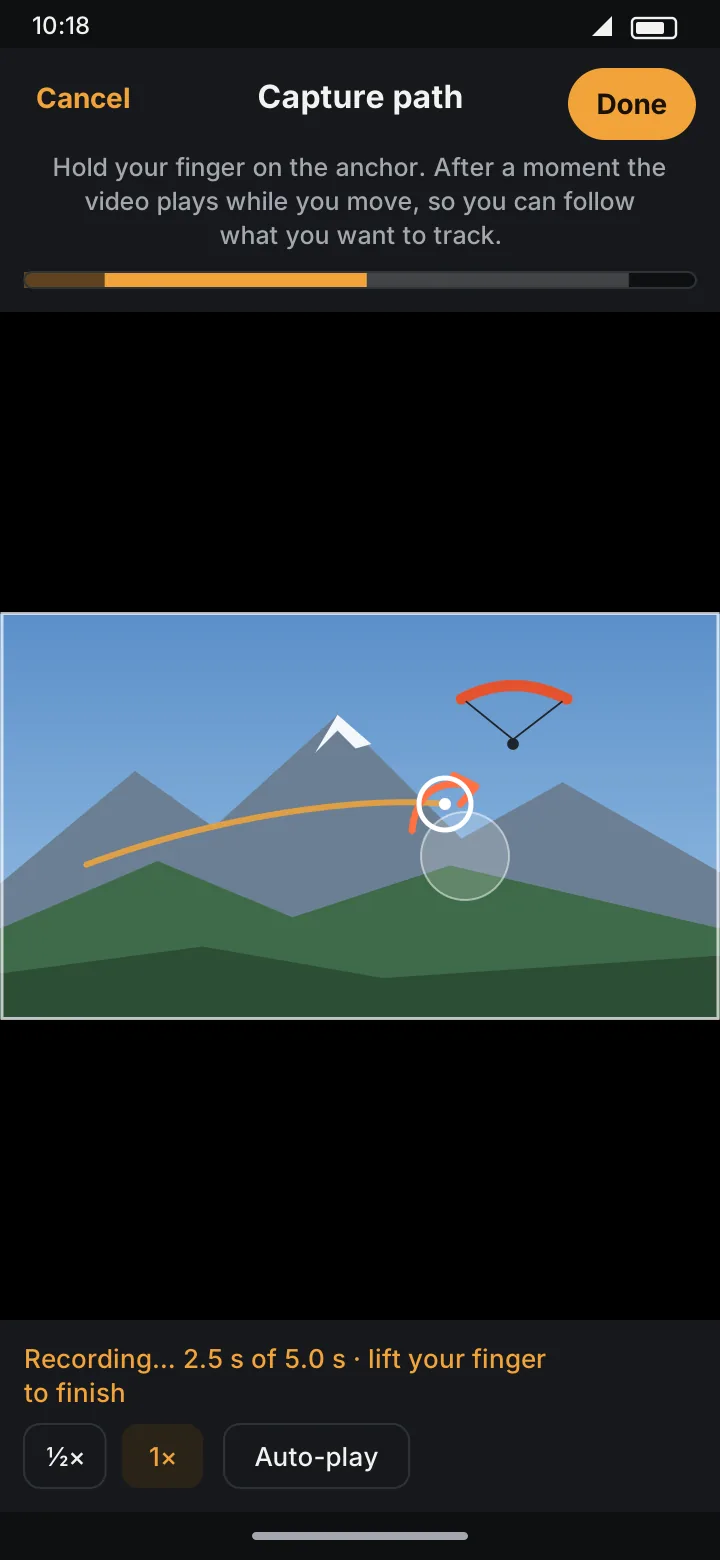
The screen switches to Capture path: the video fills the screen, the area outside the frame is dimmed, and nothing covers the picture.
- Touch and hold the anchor, the marker in the middle of the overlay, and put it where the overlay should start.
- Keep holding: Get ready… put the anchor on what you want to follow. After a moment (¾ s) recording starts.
- Move your finger along with the subject while the video moves on. The bottom line shows Recording… 2.5 s of 5.0 s.
- Lift your finger to finish, then tap Done. Cancel throws the capture away.
The progress bar at the top shows the overlay's time on screen in orange. The darker parts before and after it are the short wait while you get ready and half a second past the end, which only shapes how the path ends; neither shows in the video.
Lifting your finger before recording has started just starts over. The whole capture is one step for Undo.
Speed and Auto-play
The chips under the video set how it moves on while you draw; mobiCut remembers them:
- ½× or 1×: how fast the video plays. ½× is easier for fast subjects.
- Auto-play off: the video plays only while your finger moves and pauses when it stops, so you can take your time.
- Auto-play on: the video plays on by itself, and you just keep your finger on the subject.
Your finger always lags a little behind what you see, so mobiCut places each point a bit earlier to make up for it.
After capturing
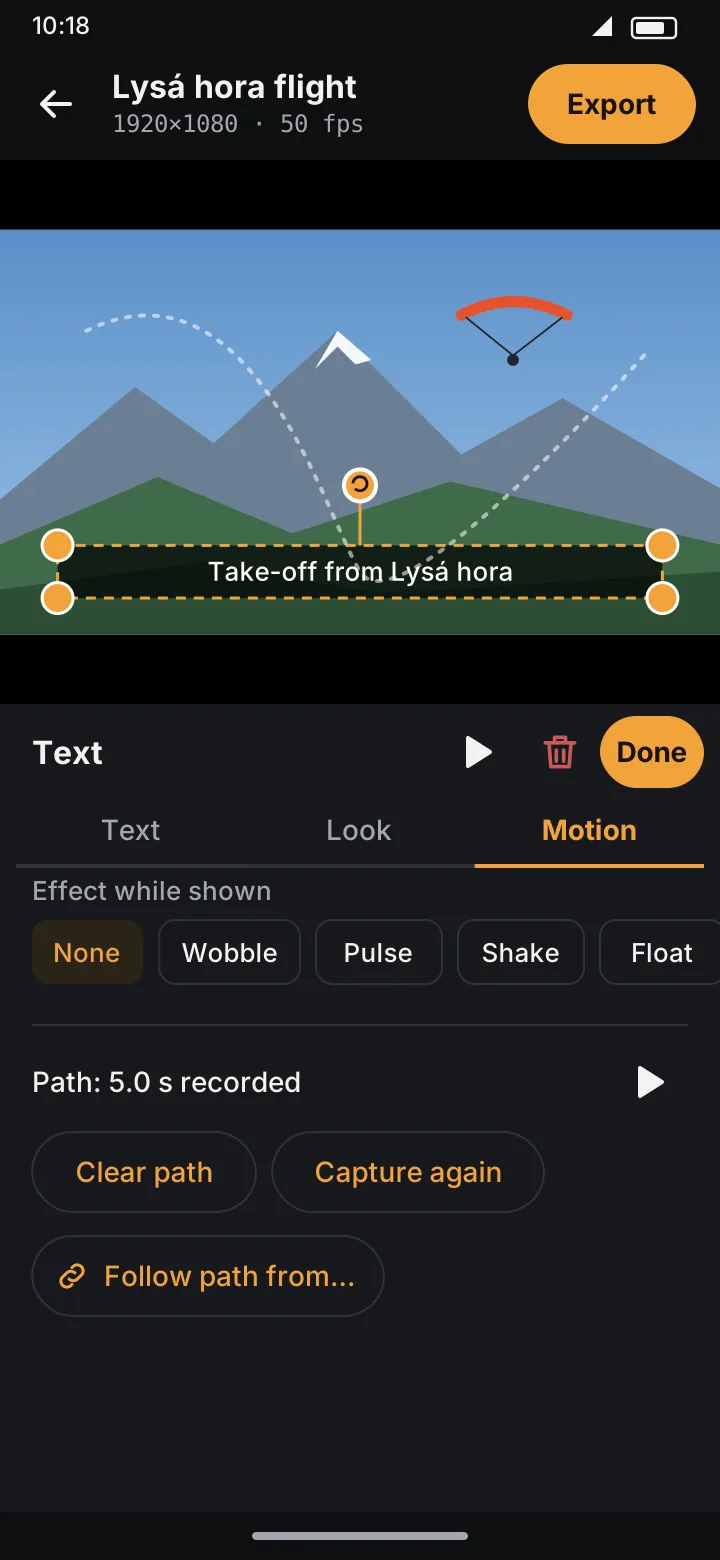
The Motion tab now shows Path: 5.0 s recorded (for an AI path: AI path: 5.0 s), with:
- ▶ to play it,
- Clear path: the overlay stays in one place again,
- Capture again: make a new one, the same way as this one (AI or by hand).
While you edit the overlay, its path is drawn faintly on the preview.
- Moving the overlay on the video moves the whole path with it, keeping its shape.
- Resizing and turning work as usual; the overlay keeps its size and angle along the path.
- The path stays on the footage, not on the clock: speed up a segment or delete a part under the overlay, and it still follows the same subject.
- The Position buttons in the Look tab are hidden while the overlay has a path.
Follow path from another overlay
If another text or graphic with a path is on screen at the same time, the Motion tab offers Follow path from…. Pick the one to follow (or just confirm, if there's only one) and tap Follow: this overlay moves alongside it, keeping the distance it has now. Handy for a name next to an arrow.
This copies the path once. If you capture the first one again later, use Follow path from… again. In Free, only AI paths can be followed.
Free and Pro
The AI path is Free. Drawing a path by hand is Pro; in Free the Draw by hand button carries the PRO badge. Hand-drawn paths stay saved when you switch to Free: the overlay just stays in its place, and moves along the path again with Pro. AI paths keep working in Free. See Free and Pro.