 mobiCut
Docs › Build a story
Several videos in one project
Put a flight and the landing filmed on another camera into one video: add more videos to the project's timeline and edit them together. Free and Pro alike.
Add a video
- Tap Add.
- Tap Video from Gallery or Video from files (SD card, USB, Downloads, Drive…).
The video goes at the end of the timeline and the playhead jumps to its start. From there, split, delete, speed up and mute its parts like any others.
Free's 1-hour limit counts all the project's videos together.
On the timeline
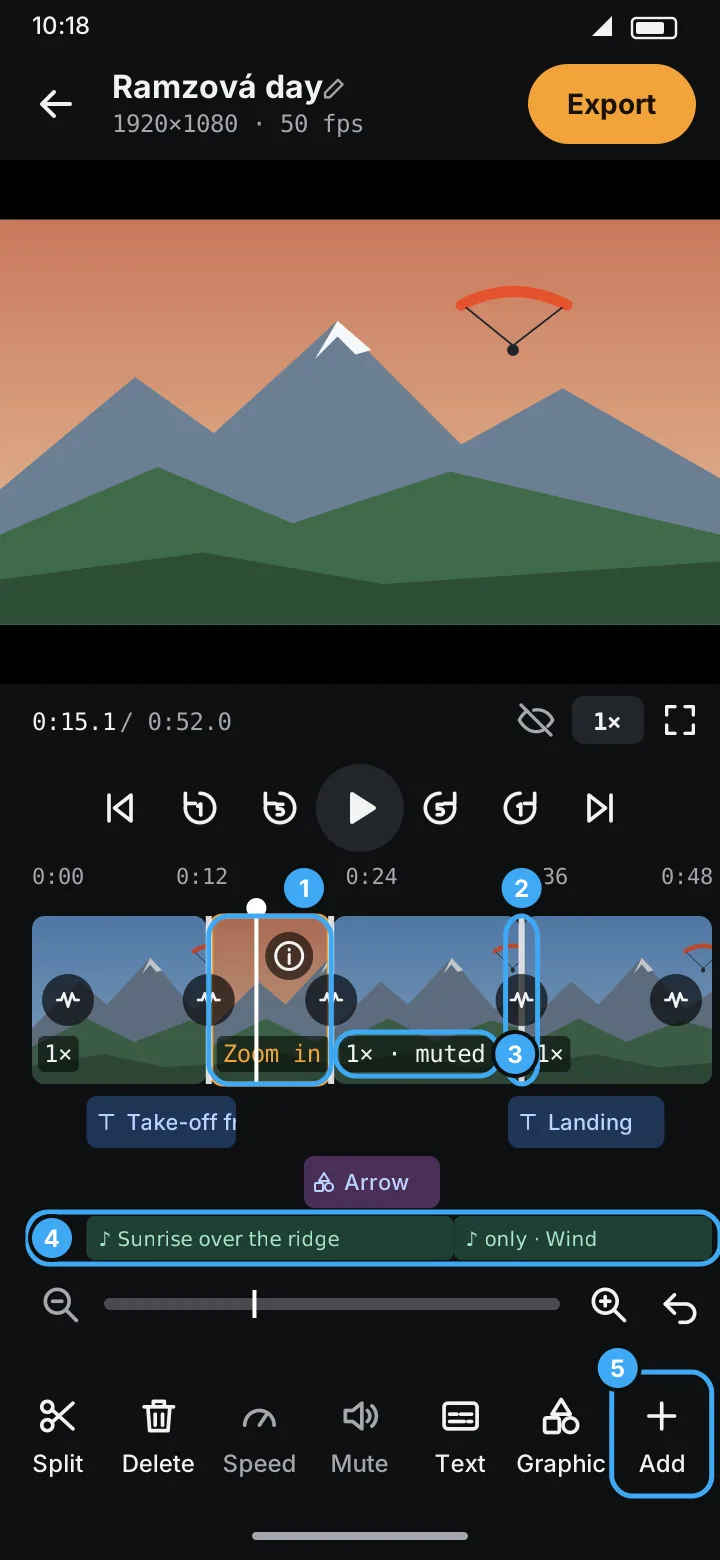
- A white line (marker 2) marks where one video (or picture, marker 1) ends and the next begins. Unlike an orange split marker it can't be dragged or removed, since the two sides are different files.
- The round button on it adds a transition, as between any two segments.
- The ⓘ segment details show which video a segment comes from.
Remove a whole video
Select any of its segments, tap ⓘ, then Remove this whole video and confirm. All its segments go, and the texts on it with them. Undo brings it back. The project's last video can't be removed.
Export
- The finished video has the size and frame rate of the first video on the timeline. Videos of another size or orientation are fitted inside that frame, with black bars where the shapes differ.
- Everything plays one after another, so the export is as long as the timeline; soundtracks running past its end are cut off.
A video can't be found
If the project's first video is missing, the editor asks you to find it again. If one of the added videos or pictures is missing, mobiCut says which one can't be opened; its part of the preview stays black.