 mobiCut
Docs › Build a story
Add a picture
Put a photo into the video: the summit shot, a map of the flight, a title card. A picture becomes a segment of its own, shown for as long as you choose, standing still or moving.
Insert a picture
- Move the playhead to where the picture should go.
- Tap Add, then Picture at the pointer.
- Tap Gallery or Browse files and pick the picture. Its name shows under the buttons.
- Set the Duration with − and + (0.5 s steps, from 0.5 s to 60 s; it starts at 3 s).
- Choose an Effect (see below), then tap Insert.
Many photos and no video? Start a slideshow instead: all pictures go in at once.
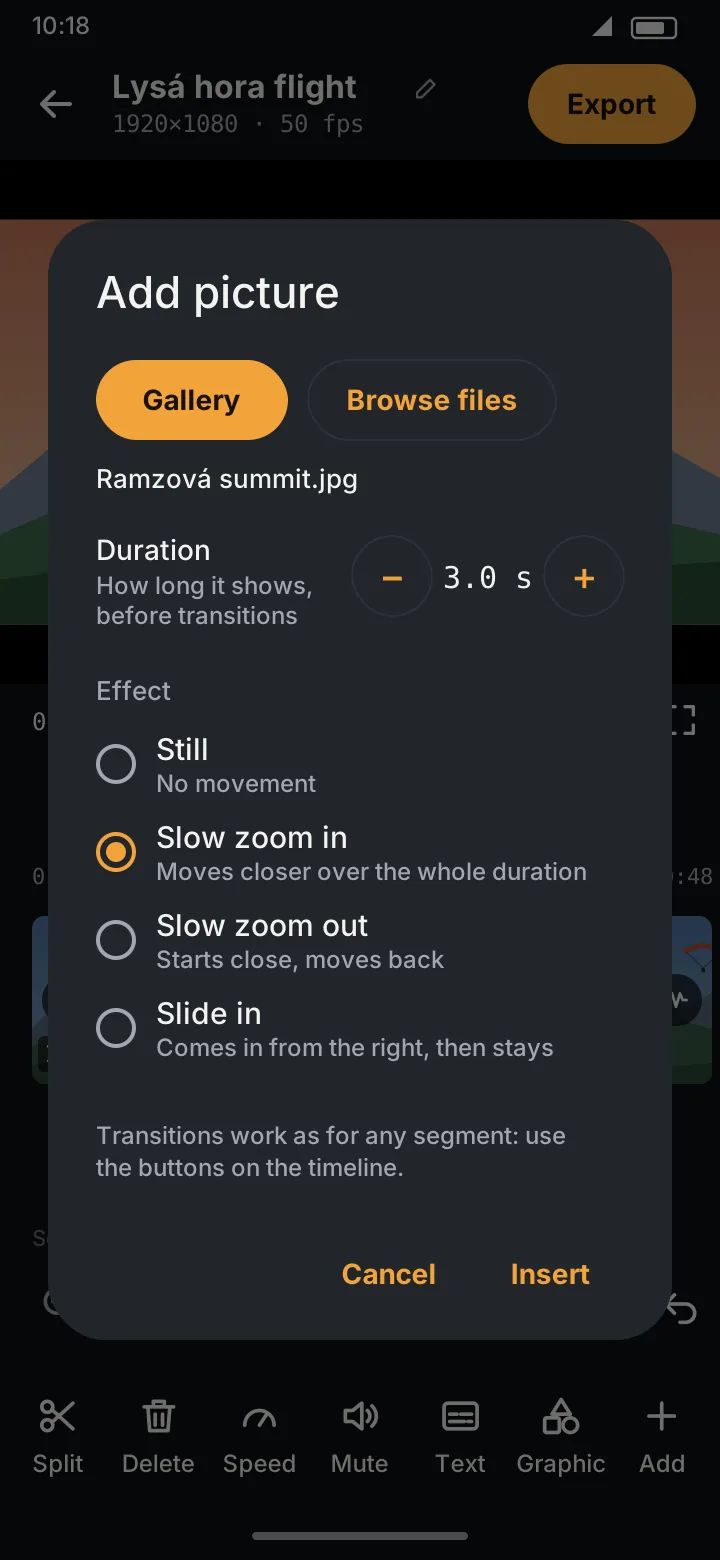
The video is split at the playhead and the picture goes in between; everything after it moves on by the picture's duration, texts included. If the playhead is within a tenth of a second of a split, the picture goes right at that split instead of making a tiny segment.
A still from the video
To use a frame of the video itself, for example to hold the moment of take-off for a few seconds, tap Video still in the Add picture dialog. It takes the video's frame at the playhead, in full resolution, and shows a small preview of it next to its name (Still 1:12.4). Set the duration and effect as for any picture and tap Insert.
The still is saved with the project (and backed up with it), so it stays even if the video is later moved. Under the button, the dialog says why a still can't be taken right now: for example The playhead is on a picture, on a text slide or on a deleted part.
Effects
| Effect | What it does |
|---|---|
| Still | No movement |
| Slow zoom in | Moves closer over the whole duration |
| Slow zoom out | Starts close and moves back |
| Slide in | Comes in from the right (in about a second), then stays |
The preview shows the effect as it will be in the export. Pictures are fitted inside the video's frame, with black bars if their shape differs.
On the timeline
A picture segment shows the picture and its effect as its label (Picture, Zoom in, Zoom out, Slide in). A white line marks where it starts and ends (see Several videos).
It works like any other segment:
- delete and restore it,
- put a transition before or after it, for example a fade out-in, or an Interleave so it crossfades with the video,
- texts and graphics can run over it.
Speed and Mute don't apply to pictures and are greyed out when one is selected.
Change or remove a picture
Select it and tap ⓘ. The segment details have Duration & effect… to change them, and Remove this picture.
The duration can only change while the picture is one segment. If you split it, its duration is fixed (the dialog says so); its effect can still change.
Pictures are in both editions.